 Vehra
QA, with receipts.
Something broke on your test site? Click it and say what is wrong. Vehra writes the ticket and attaches the proof.
Get early access (opens in a new tab)
Leave your email and we will write to you when you can install Vehra.
Vehra only runs on the sites you allow. While it runs, Chrome shows a bar saying the browser is being debugged. That is Vehra at work, and if you press Cancel on that bar, Vehra stops. Why it needs this.
See it in 30 seconds.
A broken checkout, one click, one sentence, and a ticket with the proof already on it.
What the video shows
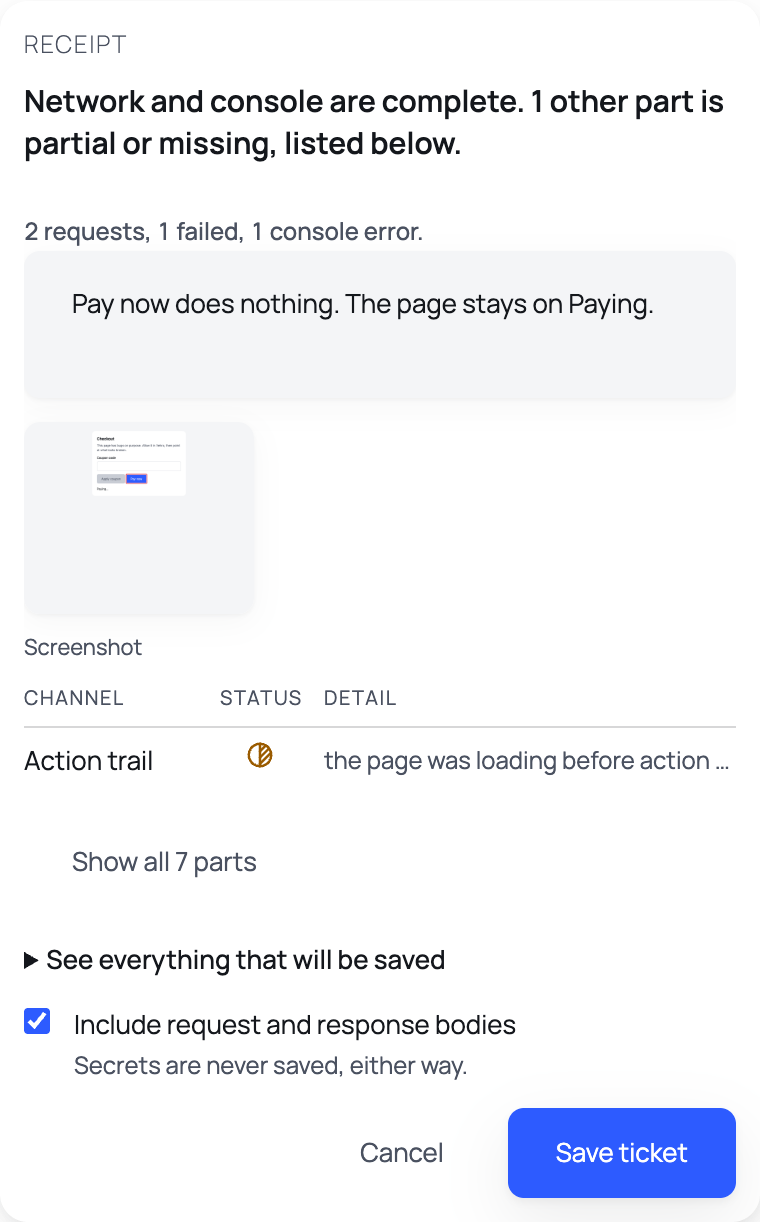
A checkout page on a test site. Pay now does nothing. Vehra was already recording requests, console messages and what the tester did. The tester clicks the broken thing and writes one sentence. The receipt shows the failed request, the console error, and what is missing, said out loud. The ticket is saved on the tester's computer, and can be filed to supported workspace tools if they want.
Stays on your computer
Your tickets are saved on your computer and stay there until you delete them. Vehra has no server, so nobody else ever gets them.
Only where you allow it
Vehra only wakes up on sites you have said yes to. Press Cancel on Chrome's bar and it stops right away.
Says what it knows it missed
If Vehra could not catch something, the ticket tells you what and why.
It remembers the last 30 seconds.
Vehra watches quietly on the sites you allow. When you click the broken thing, it freezes the last 30 seconds, so the error that just happened is already in the ticket.
Just an illustration: each tick is something the page asked for. The red ones failed.
Allow, point, save.
Open your test site and click the Vehra icon
Chrome asks once if Vehra can work on that site. Say yes and it starts watching.

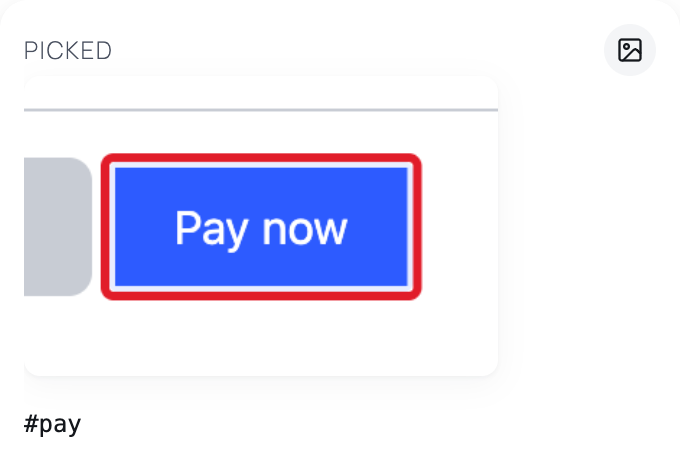
Click what is broken
Want to show just part of the page? Drag a box around it instead.
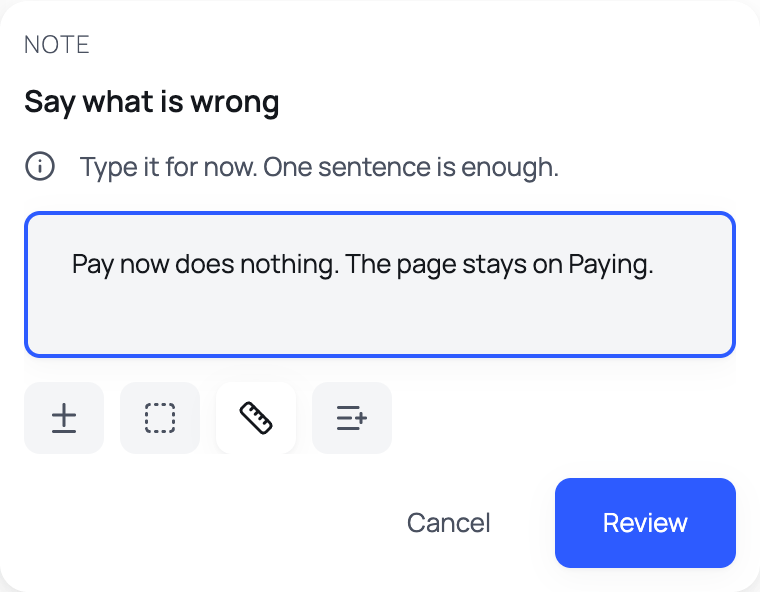
Say what is wrong, check the receipt, save
One sentence is plenty. The ticket is saved on your computer.
Everything a developer asks you for, already on the ticket.
Here is what goes on every ticket.
- What the page sent and receivedevery ticket
The requests around the problem, and what came back.
- Error messagesevery ticket
Whatever errors and warnings the browser logged.
- The thing you clickedevery ticket
How big it is, what colour, and why it is greyed out if it is.
- Your stepsevery ticket
What you clicked on the way. What you typed is never kept.
- A screenshotevery ticket
With anything you typed covered up.
- A checklistevery ticket
Every part of the ticket marked complete, partial or missing, with the reason.
- A clipon request
A short video, with typed fields covered.
- A page checkon request
Basic accessibility and search checks. They are automated, not a full audit, and they tell you what they did not look at.
- An automated teston request
Written from the ticket, or from what you did on the page, so you can run it again later.
Works with the tools you already use.
Every connection is optional. Each one asks for its own permission, and you can remove it with one click.
- Notion
Connect your own workspace and Vehra files a copy of every ticket there, with your note, the screenshot, the evidence and the receipt. It is always saved on your computer first.
- Figma
Paste a link to a design and Vehra reads its size, colours and fonts, so you can check the page against it. It uses your own Figma key.
- GitHub
Connect a repository and Vehra files each ticket as an issue, with your note, the evidence and the receipt as text. It uses your own access token. GitHub cannot take a picture this way, so the issue says the screenshot stays on your computer.
- Linear
Connect a team and Vehra files each ticket as an issue, with your note, the evidence and the receipt as text. It uses your own API key. It does not upload the screenshot, and the issue says so.
- Jira
Connect a Jira Cloud project and Vehra files each ticket as an issue, with the screenshot attached. It uses your own API token.
- Slack
Tick a box on a ticket to post a short message to one channel, with your note, the page, the element and what the receipt says. No screenshots, and you read the message before it is sent. It uses a webhook address you make in Slack.
- Playwright
Turn a ticket, or what you did on a page, into a Playwright test you can run in your own project. What you typed is never in it. You fill those values in when you run it.
- Files
Take any ticket out as a Markdown, HTML or JSON file, or take all of them as one backup you can restore later, or on another computer.
The accessibility check uses the open-source axe-core rules, built in.
It tells you what it missed.
Every part of the ticket is marked complete, partial or missing, and the reason is written next to it.
- CompleteCaptured in full.
- PartialCaptured, but with a gap. The gap and the reason are right beside it.
- MissingNot captured, and it says why.
Questions people ask.
Short answers. The privacy page has the full ones.
What does Vehra record?
The requests the page makes, the browser's console messages, the thing you click, the steps you take and a screenshot. Only on sites you allow, and only the last 30 seconds before you click. It never keeps what you type.
Does it see my passwords?
It takes out passwords, tokens, cookies, authorization headers and card numbers the moment it sees them, before anything is saved. Other data in a request stays, and you can leave request and response bodies out when you save.
Where do my tickets go?
Nowhere. They are saved on your computer. A ticket only leaves if you connect a workspace tool, post it to a chat channel, or export a file. Vehra has no server, so we never get a copy.
Do I need an account?
No. There is no Vehra account and no sign-in. Everything stays in your browser.
Why does Chrome say the browser is being debugged?
Vehra uses Chrome's debugger to see what a page sends and receives. Chrome always shows that bar while it runs. Press Cancel on it and Vehra stops.
Does it change my page?
It does not change how your page works, and it never blocks anything the page sends. The recorder bar just sits on top of the page.
Can I use it on my live site?
It is made for test sites. If an address looks like your live site, Vehra asks you to type a confirmation first, and the ticket says so.
What if it could not capture something?
The ticket says so. Every part is marked complete, partial or missing, with the reason next to it.
Can I delete a ticket?
Yes. Tickets stay on your computer until you delete them, and only you can delete them.
Can it turn a bug into a test?
Yes. Vehra can write an automated browser test from a ticket, or from what you did on the page. What you typed is never in it.
Which browser does it work in?
Chrome, for now.
What Vehra does not do.
- It is for test sites. If an address looks like your live site, Vehra asks you to type a confirmation first, and the ticket says so.
- Notes are typed, not spoken.
- The screenshot covers the typed fields it can find. It can't see inside content embedded from another site, and the ticket says so when that happens.
- The accessibility and search checks catch some problems, never all of them.
The privacy page lists everything Vehra reads and why it needs each permission.
One sentence from you. The rest is already attached.
You point at what is broken and say what is wrong. That is it. The failed request, the console error, your steps and a screenshot are already on the ticket, and the receipt tells you what it could not capture.